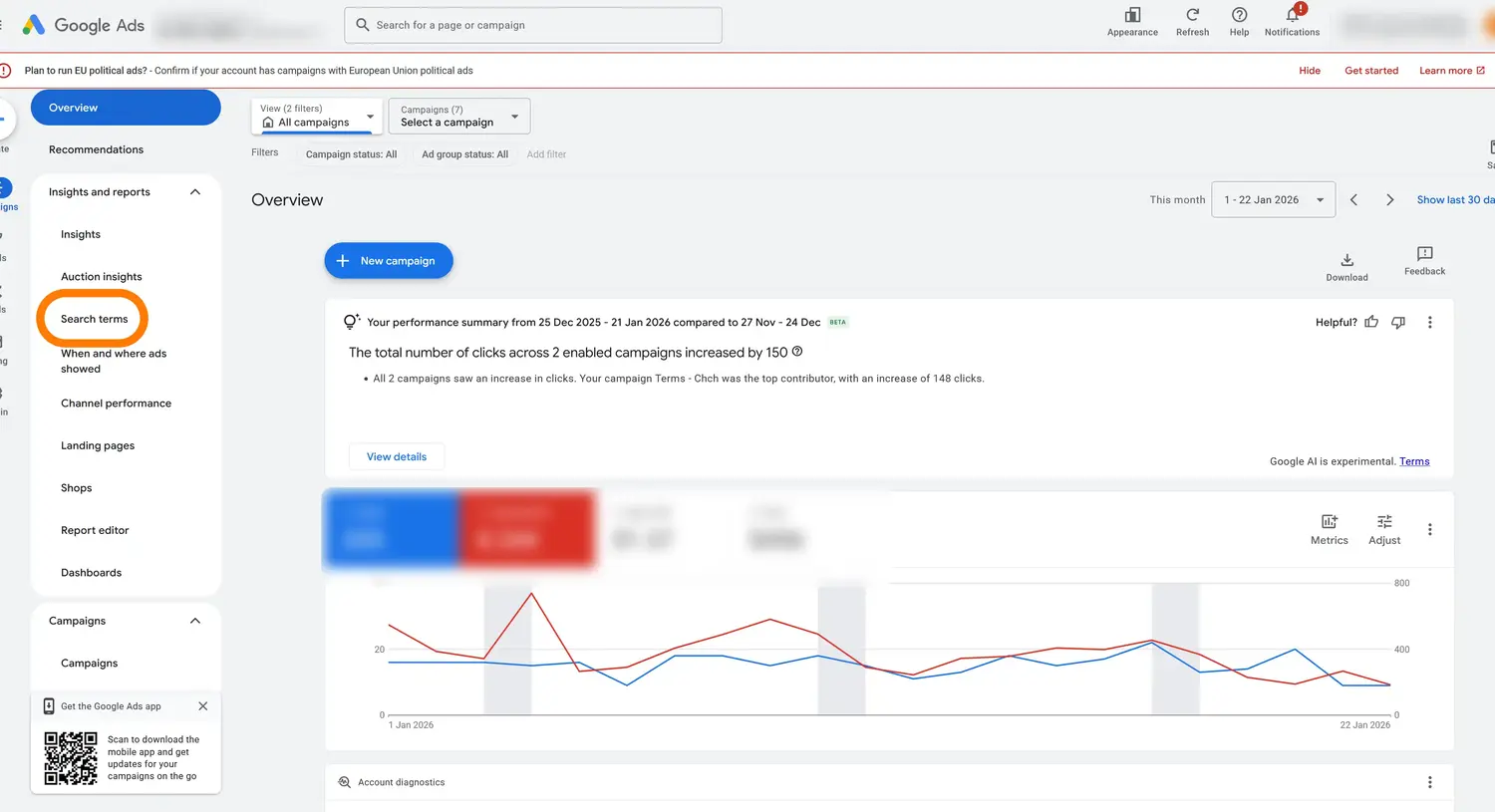
Step 1: Navigate to Search Terms in Google Ads
In your Google Ads account, expand Insights and reports in the left sidebar and click Search terms.
In your Google Ads account, expand Insights and reports in the left sidebar and click Search terms.
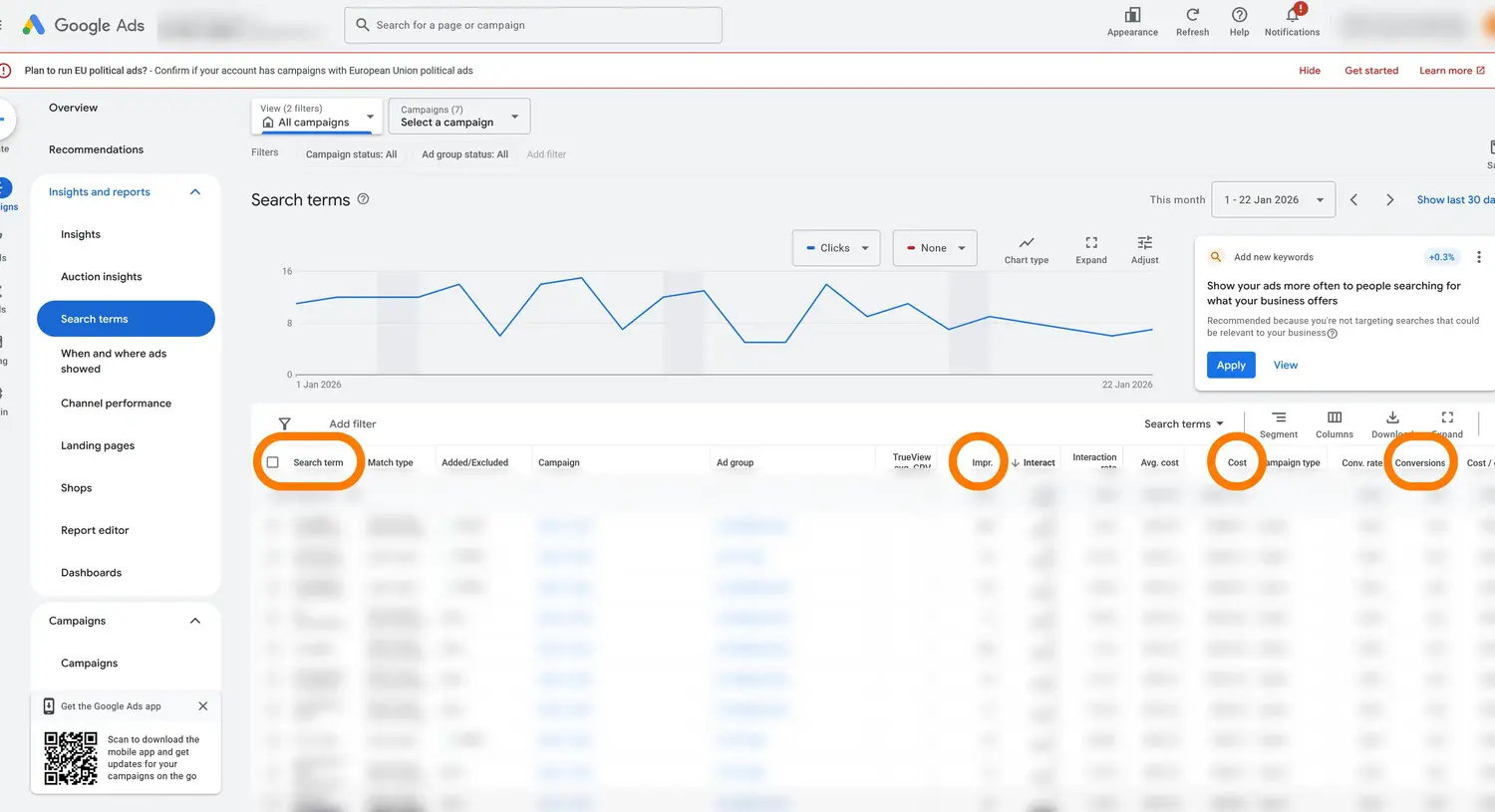
Make sure your search terms table includes these columns: Search term, Impr. (Impressions), Cost, and Conversions. You can see these in the table header.
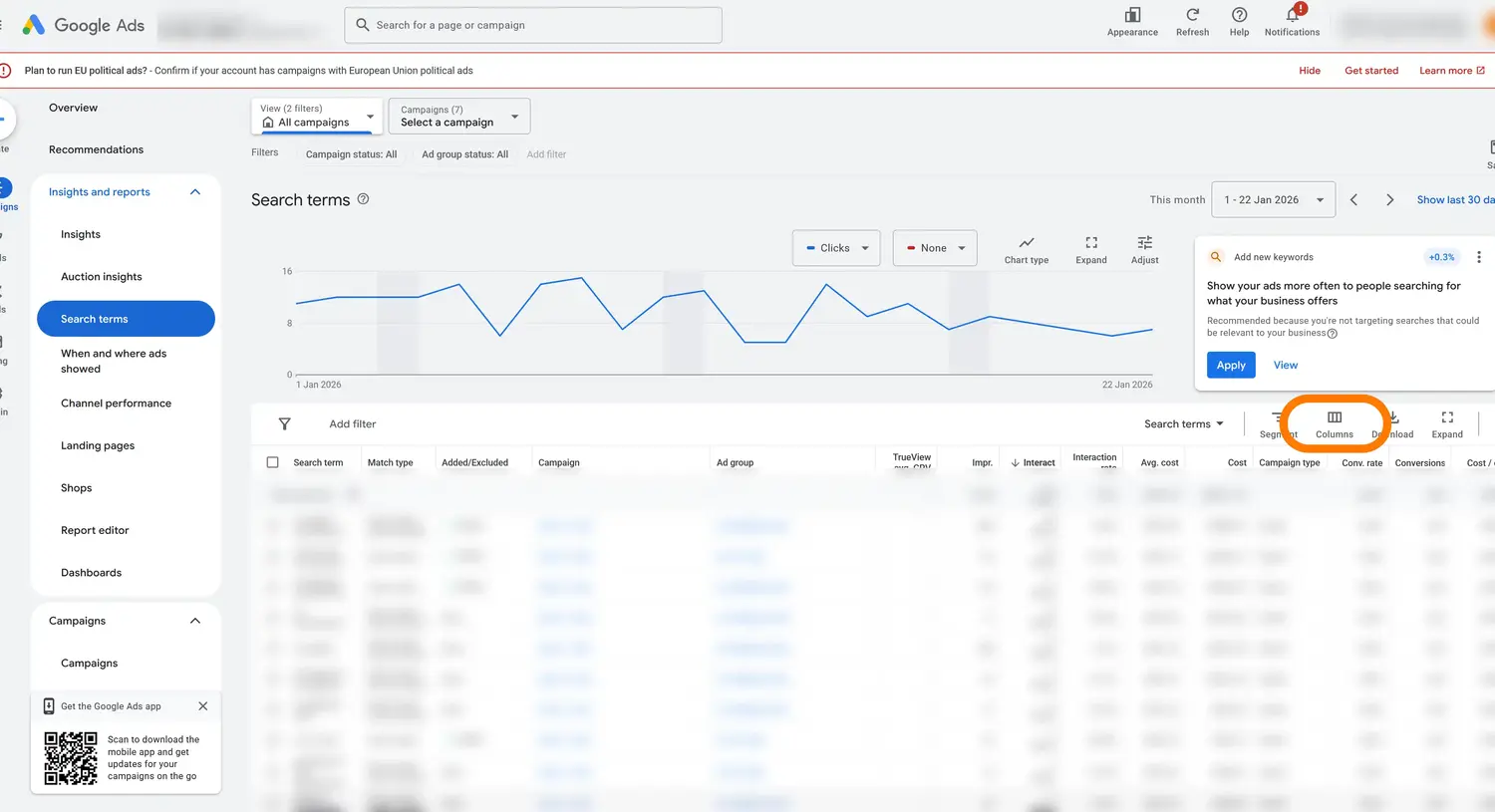
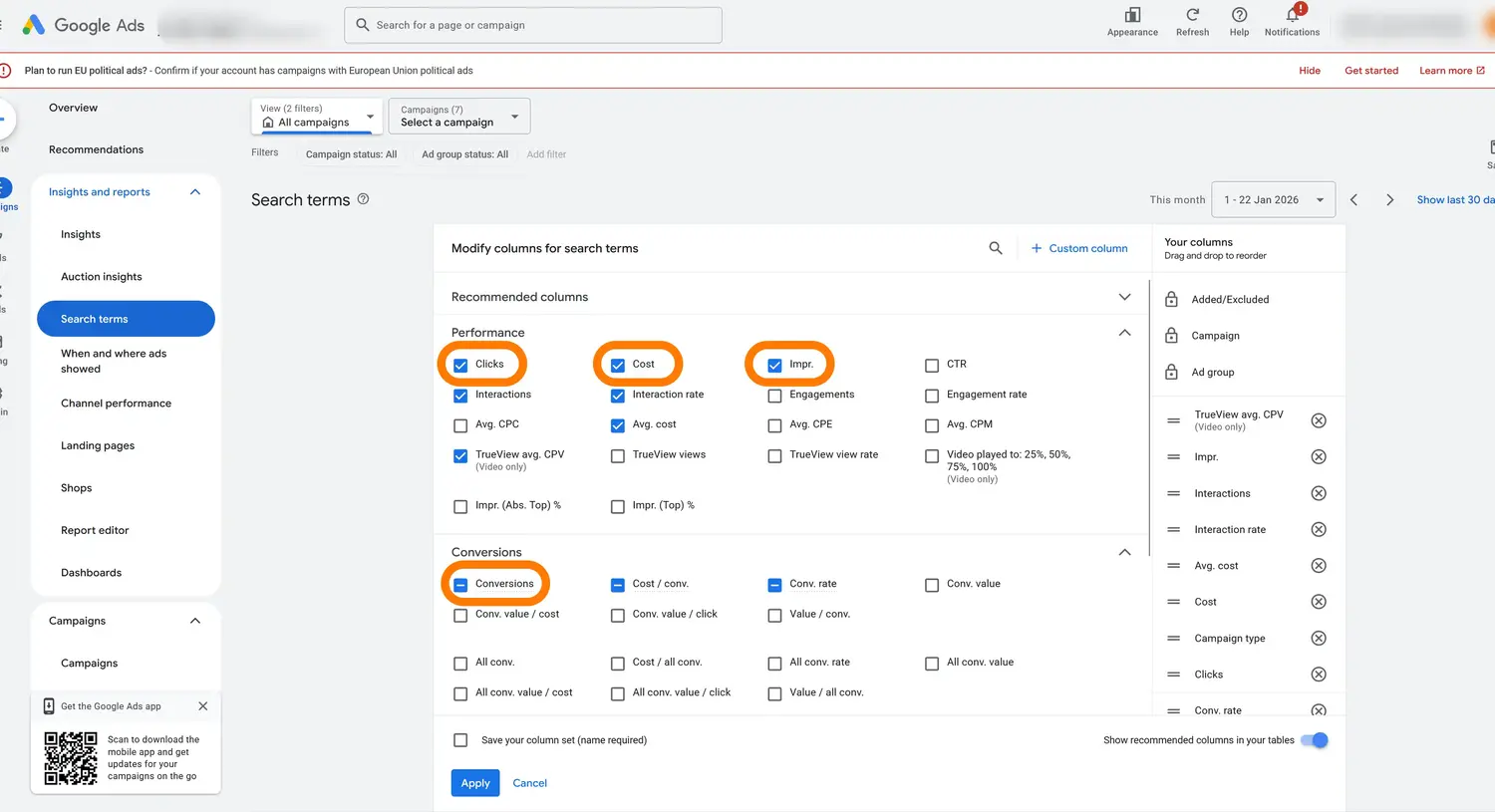
Click the Columns button in the toolbar above the table to modify which columns are displayed.
In the column selector, ensure Clicks, Cost, and Impr. (under Performance) and Conversions (under Conversions) are checked. Click Apply to save your changes.
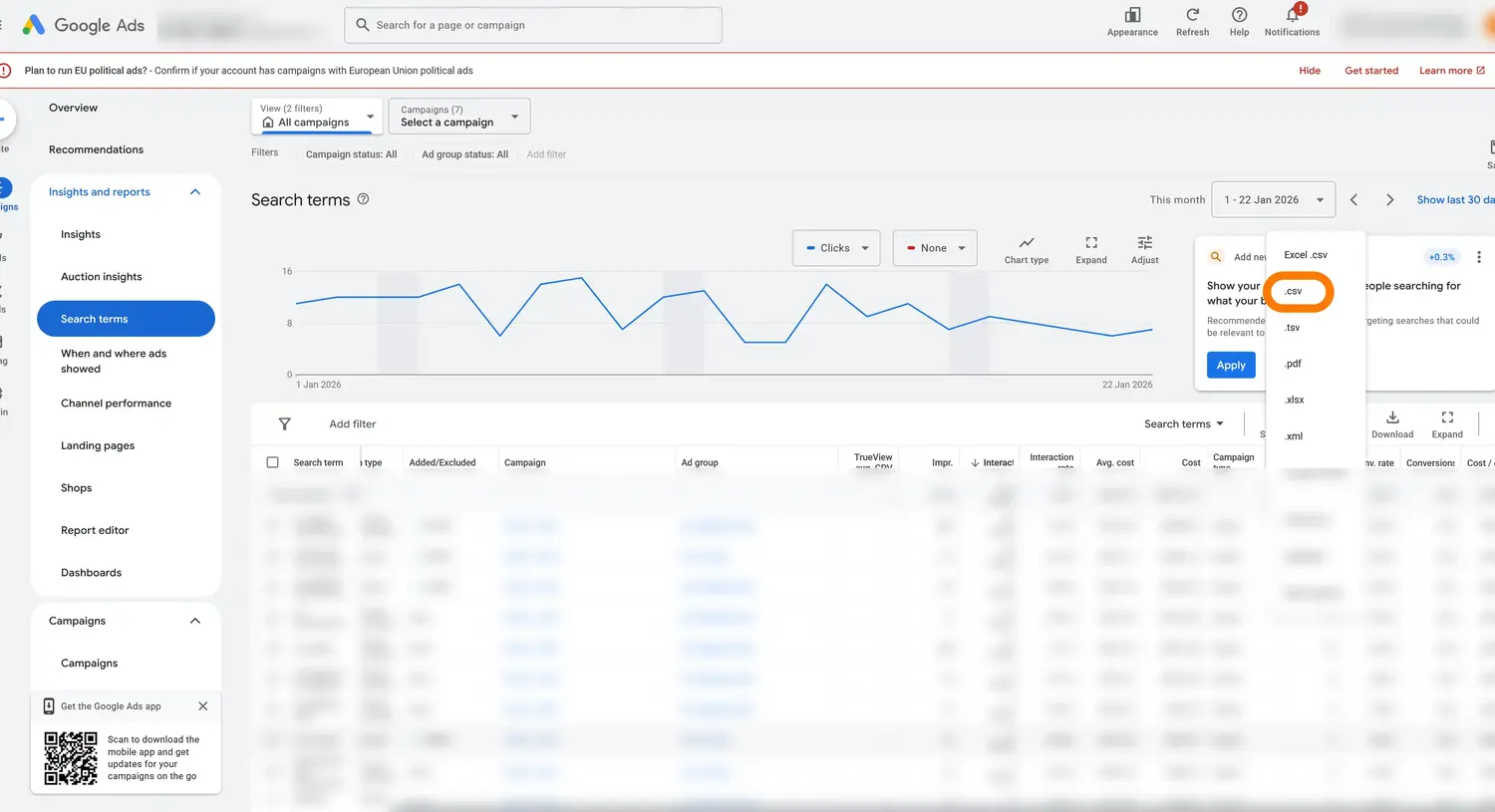
Click the Download button and select .csv from the dropdown menu. Save the file to your computer.
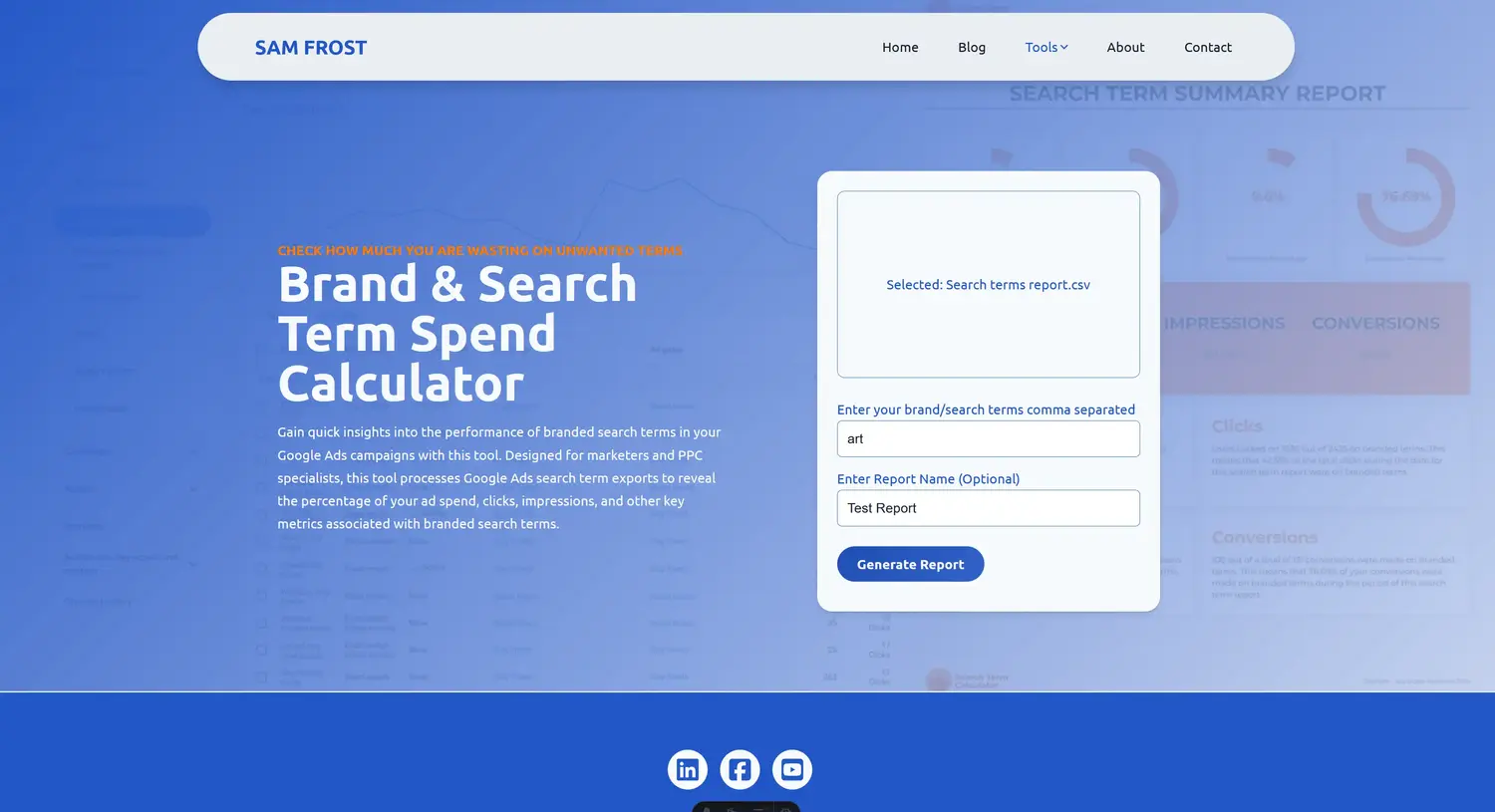
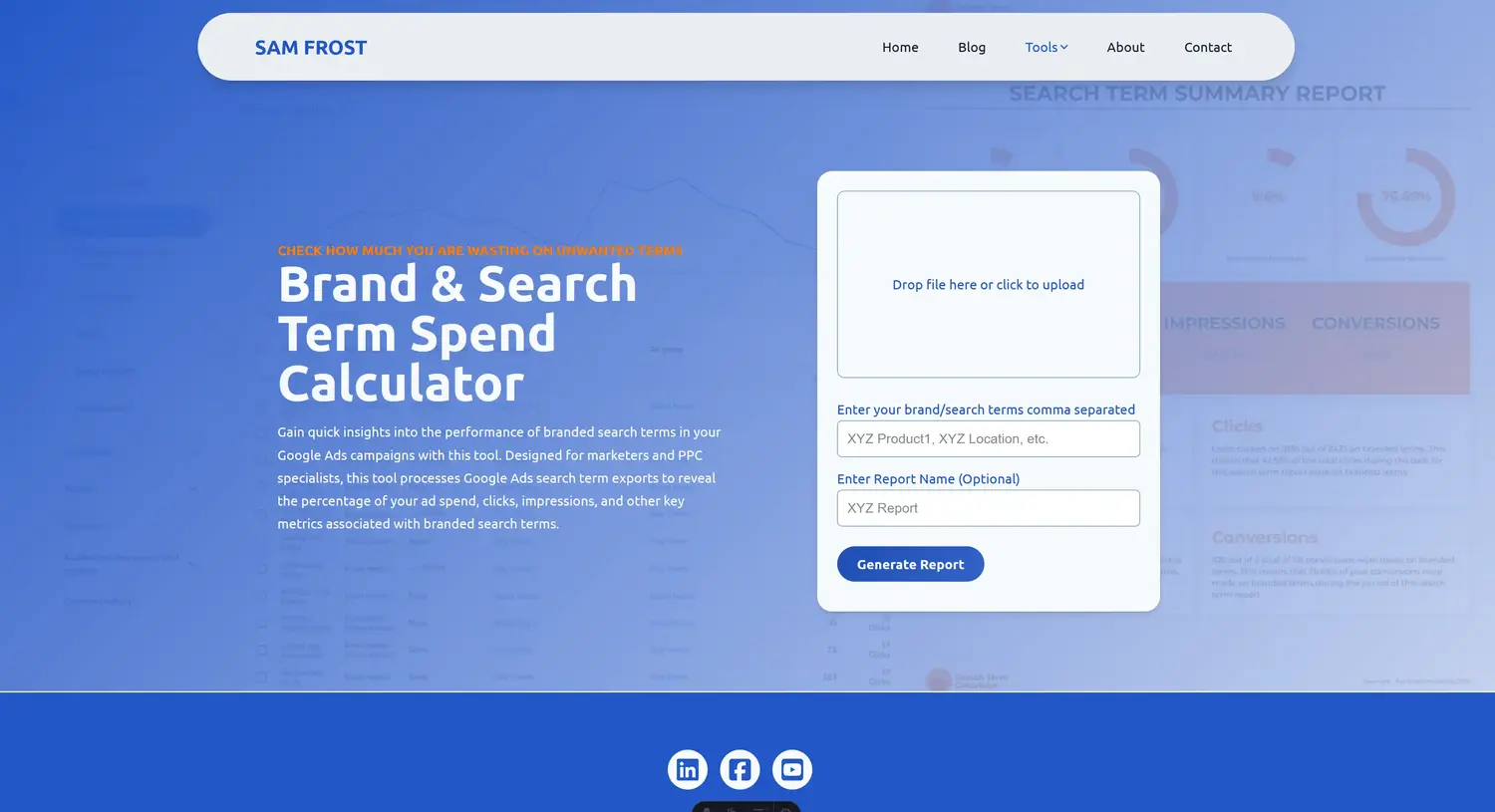
Go to the tool and you'll see the upload form ready for your CSV file.
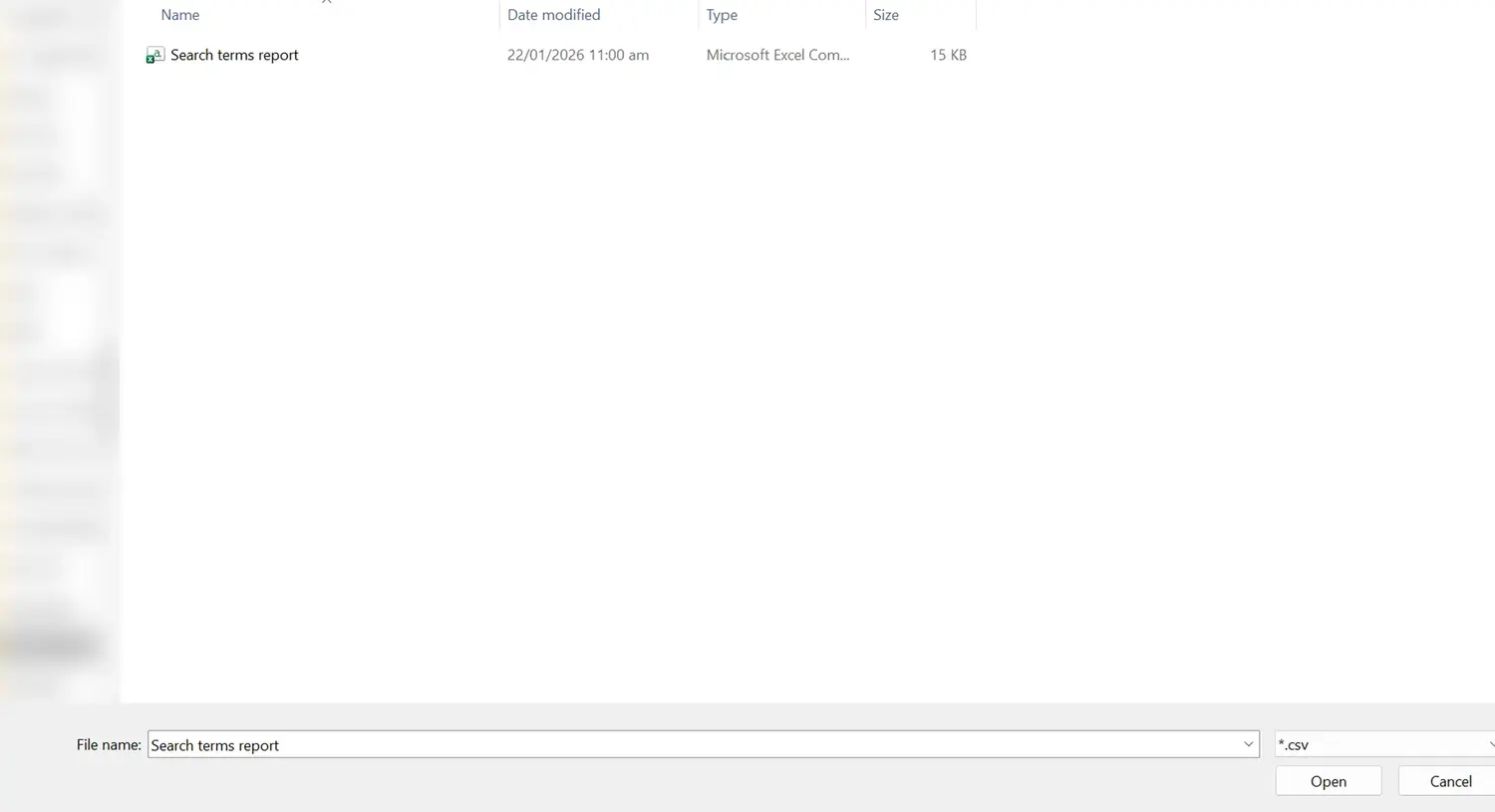
Click the upload box or drag and drop your downloaded CSV file. You'll see the filename appear when it's selected.
Enter your brand/search terms separated by commas, optionally add a report name, then click Generate Report to see your results.